
S3 Version History Migration: Step-by-Step with Godwit Sync
Migrate every S3 version: current, noncurrent, and delete markers with Godwit Sync's --version-mode flag. Includes full history, point-in-time filtering, Object Lock buckets, and a hands-on Docker lab.
Hands-on lab available: Run a full version history migration against real S3-compatible stores in Docker. Go to the lab
An S3 versioned bucket does not contain a flat set of files. It contains a version chain per key, a set of delete markers, and (in compliance-regulated environments) per-version retention locks. A migration that copies only the latest version of each key loses rollback history, audit trails, and legal holds. This guide walks through a full version history migration with Godwit Sync, covering every version category, Object Lock metadata, point-in-time filtering, and verification.
Versioned Buckets Store Three Categories of Objects
S3 versioning changes how a bucket stores data. Every write to a key creates a new version rather than overwriting the previous content. The bucket accumulates three distinct categories of objects:
Current versions are the latest version of each key. Standard S3 operations like GetObject and ListObjectsV2 interact only with current versions. A bucket with 10 keys and 50 total versions still shows 10 objects in a normal listing.
Noncurrent versions are prior versions that S3 retains when a key is overwritten or re-uploaded. They remain accessible by version ID but are invisible to standard list and sync operations. Noncurrent versions are the basis of rollback: restoring a previous version means promoting a noncurrent version to current.
Delete markers are tombstones that S3 places when a key is deleted in a versioned bucket. A delete marker hides the key from normal listings without removing any version data. The key's entire version history remains intact behind the marker. Removing the delete marker restores the key to its latest version.
Each version also carries its own metadata: Content-Type, Cache-Control, Content-Encoding, Content-Disposition, and custom x-amz-meta-* headers. Two versions of the same key can have different Content-Type values if the file format changed between uploads.
A Current-Version-Only Migration Loses Rollback, Audit, and Compliance Data
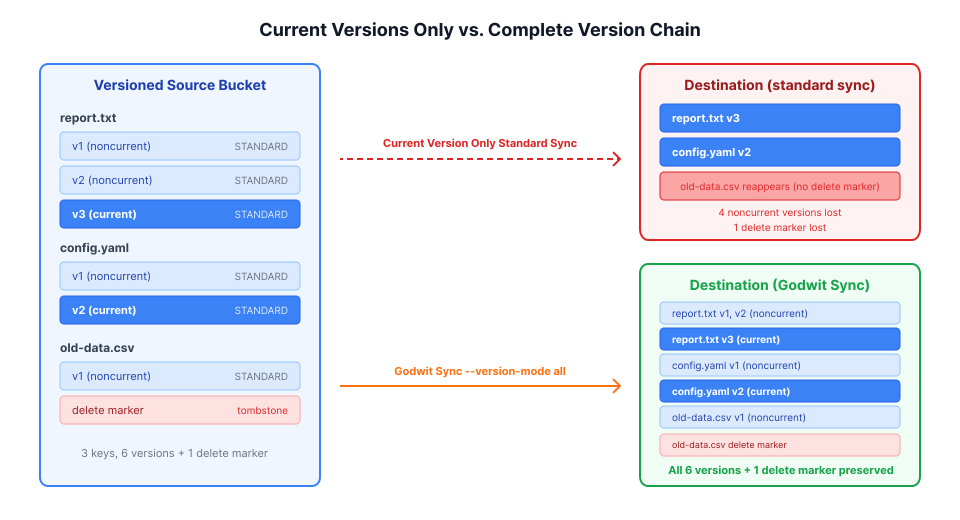
A migration that transfers only current versions produces a bucket that looks correct on the surface (same keys, same file contents) but is fundamentally different from the source.
Rollback capability disappears. Without noncurrent versions, there is nothing to roll back to. An accidental overwrite at the destination has no recovery path through S3's native versioning mechanism.
Deleted files reappear. Without delete markers, keys that were intentionally deleted at the source become visible again at the destination. The current version behind the delete marker gets copied as a live object.
Audit trails break. Compliance and forensics workflows depend on the full version chain to answer questions like "what did this file contain on a specific date" or "who changed this configuration and when." A single-version copy cannot answer these questions.
Per-version metadata is lost or misattributed. Each version can carry different metadata. A migration that only copies the current version applies the current version's metadata to the destination key, losing any metadata that was specific to prior versions.
Godwit Sync's --version-mode all flag preserves the complete version chain (current versions, noncurrent versions, and delete markers) with per-version metadata intact:
godwit sync \
  --source s3://source-versioned \
  --destination s3://dest-versioned \
  --version-mode all
S3 Object Lock Enforces Per-Version WORM Protection
S3 Object Lock enforces write-once-read-many (WORM) protection at the version level. Every Object Lock bucket is a versioned bucket; S3 requires versioning as a prerequisite for Object Lock.
Object Lock applies three attributes per version:
- Retention mode, either GOVERNANCE (removable by users with
s3:BypassGovernanceRetentionpermission) or COMPLIANCE (immutable until the retention period expires; no user can remove it, including the root account) - Retain-until date, the timestamp after which the version can be deleted or overwritten
- Legal hold, an independent flag that prevents deletion regardless of the retention period, typically applied during litigation or investigation
These attributes are set per version, not per key. Version 1 of a file might be under COMPLIANCE retention until 2028, while version 2 of the same file might be under GOVERNANCE retention until 2027 with a legal hold. A migration must read and apply the correct lock attributes for each individual version. Copying only the current version's lock settings discards the retention timeline of every prior version, a compliance violation in regulated environments.
Godwit Sync's --object-lock flag reads retention mode, retain-until date, and legal hold from each version at the source and applies the same settings at the destination. Combined with --version-mode all, this replicates both the version chain and its per-version lock metadata:
godwit sync \
  --source s3://source-locked \
  --destination s3://dest-locked \
  --version-mode all \
  --object-lock
This per-version handling is also what makes Godwit a practical immutable S3 backup tool for recurring runs, not just one-time migrations: each new version it writes into a destination bucket configured with S3 Object Lock inherits that bucket's retention, becoming a restore point that cannot be deleted or overwritten before its retain-until date.
Planning a Full Version History Migration
Before moving any data, --plan-only scans the source bucket and records every version in the state database. Combined with --version-mode all, this builds a complete inventory: current versions, noncurrent versions, and delete markers.
Bash/zsh:
godwit sync \
  --source s3://source-versioned \
  --source-endpoint localhost:5555 \
  --source-access-key testing \
  --source-secret-key testing \
  --source-secure=false \
  --destination s3://dest-versioned \
  --destination-endpoint localhost:8000 \
  --destination-access-key minioadmin \
  --destination-secret-key minioadmin \
  --destination-secure=false \
  --state-path ./godwit.state.db \
  --run-id version-all \
  --version-mode all \
  --plan-only \
  --brief
PowerShell:
godwit sync `
  --source s3://source-versioned `
  --source-endpoint localhost:5555 `
  --source-access-key testing `
  --source-secret-key testing `
  --source-secure=false `
  --destination s3://dest-versioned `
  --destination-endpoint localhost:8000 `
  --destination-access-key minioadmin `
  --destination-secret-key minioadmin `
  --destination-secure=false `
  --state-path ./godwit.state.db `
  --run-id version-all `
  --version-mode all `
  --plan-only `
  --brief
Inspect the plan to confirm version counts before any data moves:
Bash/zsh:
godwit plan inspect \
  --run-id version-all \
  --state-path ./godwit.state.db
PowerShell:
godwit plan inspect `
  --run-id version-all `
  --state-path ./godwit.state.db
The output shows total versions discovered, delete markers, storage class breakdown, and planned byte count. If the numbers look wrong, drop the run and re-plan before any data moves.
Executing the Migration
--resume picks up the existing plan and transfers every version that has not yet completed. This is the step that actually syncs S3 object versions from the source bucket to the destination.
Bash/zsh:
godwit sync \
  --source s3://source-versioned \
  --source-endpoint localhost:5555 \
  --source-access-key testing \
  --source-secret-key testing \
  --source-secure=false \
  --destination s3://dest-versioned \
  --destination-endpoint localhost:8000 \
  --destination-access-key minioadmin \
  --destination-secret-key minioadmin \
  --destination-secure=false \
  --state-path ./godwit.state.db \
  --run-id version-all \
  --version-mode all \
  --resume \
  --status-addr :8080 \
  --brief
PowerShell:
godwit sync `
  --source s3://source-versioned `
  --source-endpoint localhost:5555 `
  --source-access-key testing `
  --source-secret-key testing `
  --source-secure=false `
  --destination s3://dest-versioned `
  --destination-endpoint localhost:8000 `
  --destination-access-key minioadmin `
  --destination-secret-key minioadmin `
  --destination-secure=false `
  --state-path ./godwit.state.db `
  --run-id version-all `
  --version-mode all `
  --resume `
  --status-addr :8080 `
  --brief
Poll the live status endpoint from a second terminal while the transfer runs:
curl http://localhost:8080/status
If the process is interrupted, re-run the same command. --resume picks up from the exact version where it stopped.
Verifying Version Completeness
After the migration, godwit plan inspect shows per-key version completeness:
Bash/zsh:
godwit plan inspect \
  --run-id version-all \
  --state-path ./godwit.state.db
PowerShell:
godwit plan inspect `
  --run-id version-all `
  --state-path ./godwit.state.db
To list keys with incomplete history:
Bash/zsh:
godwit plan list objects all \
  --partial-history \
  --run-id version-all \
  --state-path ./godwit.state.db
PowerShell:
godwit plan list objects all `
  --partial-history `
  --run-id version-all `
  --state-path ./godwit.state.db
To list the specific GLACIER versions that were skipped:
Bash/zsh:
godwit plan list objects glacier \
  --run-id version-all \
  --state-path ./godwit.state.db
PowerShell:
godwit plan list objects glacier `
  --run-id version-all `
  --state-path ./godwit.state.db
Run checksum verification on the destination to confirm every copied version is intact:
Bash/zsh:
godwit plan verify \
  --run-id version-all \
  --destination s3://dest-versioned \
  --destination-endpoint localhost:8000 \
  --destination-access-key minioadmin \
  --destination-secret-key minioadmin \
  --destination-secure=false \
  --state-path ./godwit.state.db \
  --brief
PowerShell:
godwit plan verify `
  --run-id version-all `
  --destination s3://dest-versioned `
  --destination-endpoint localhost:8000 `
  --destination-access-key minioadmin `
  --destination-secret-key minioadmin `
  --destination-secure=false `
  --state-path ./godwit.state.db `
  --brief
A clean run prints a verified count with zero failures. Any mismatch is reported per-object with expected and actual checksums.
Point-in-Time Restore with Version Filtering
--version-mode "since:<RFC3339>" migrates only versions modified after a given timestamp. This enables S3 point-in-time restore without manual scripting. Two common use cases:
- Ransomware recovery. Copy only pre-attack versions to a clean bucket, filtering out anything modified after the compromise timestamp.
- Incremental migration. After a full sync of all S3 object versions, run a
since:pass to pick up versions created since the initial run.
Bash/zsh:
godwit sync \
  --source s3://source-versioned \
  --source-endpoint localhost:5555 \
  --source-access-key testing \
  --source-secret-key testing \
  --source-secure=false \
  --destination s3://pit-bucket \
  --destination-endpoint localhost:8000 \
  --destination-access-key minioadmin \
  --destination-secret-key minioadmin \
  --destination-secure=false \
  --state-path ./godwit.state.db \
  --run-id version-since \
  --version-mode "since:2026-03-18T12:00:00Z" \
  --plan-only \
  --brief
PowerShell:
godwit sync `
  --source s3://source-versioned `
  --source-endpoint localhost:5555 `
  --source-access-key testing `
  --source-secret-key testing `
  --source-secure=false `
  --destination s3://pit-bucket `
  --destination-endpoint localhost:8000 `
  --destination-access-key minioadmin `
  --destination-secret-key minioadmin `
  --destination-secure=false `
  --state-path ./godwit.state.db `
  --run-id version-since `
  --version-mode "since:2026-03-18T12:00:00Z" `
  --plan-only `
  --brief
Replace the timestamp with any RFC3339 value. Inspect the plan; it should show fewer versions than the full migration. Then add --resume (and remove --plan-only) to execute.
Compare both runs side by side:
Bash/zsh:
godwit plan list \
  --state-path ./godwit.state.db
PowerShell:
godwit plan list `
  --state-path ./godwit.state.db
The version-all run shows the full version count. The version-since run shows only versions modified after the timestamp.
Try It Hands-On
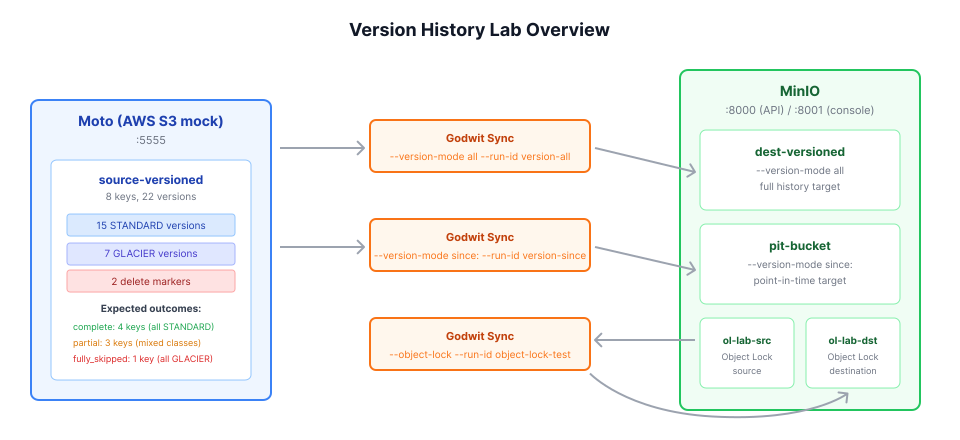
The companion lab provides a complete Docker environment with Moto and MinIO, a versioned seed script with mixed STANDARD and GLACIER storage classes, and a single script that runs full history migration, point-in-time filtering, Object Lock replication, and checksum verification:
bash scripts/migrate-versions.sh