
S3 Migration Guide: How to Upload, Transfer, and Download S3 Data
Step-by-step S3 migration guide covering uploads to S3, S3-to-S3 transfers between providers, and downloading S3 buckets to local disk. Includes resumable transfers, checksum verification, and a hands-on Docker lab.
Hands-on lab available: Run all three use cases against real S3-compatible stores in Docker. Go to the lab
Godwit Sync is a single command that handles all three S3 migration directions: uploading local files to a bucket, transferring objects between S3-compatible providers, and downloading a bucket to local disk. The --source and --destination flags accept both local paths and s3:// URIs, so the interface stays the same regardless of direction:
- Upload (fs -> s3) -- push local files to an S3 bucket
- Transfer (s3 -> s3) -- migrate between S3 providers with a plan-first workflow
- Download (s3 -> fs) -- pull a bucket to local disk with live progress monitoring
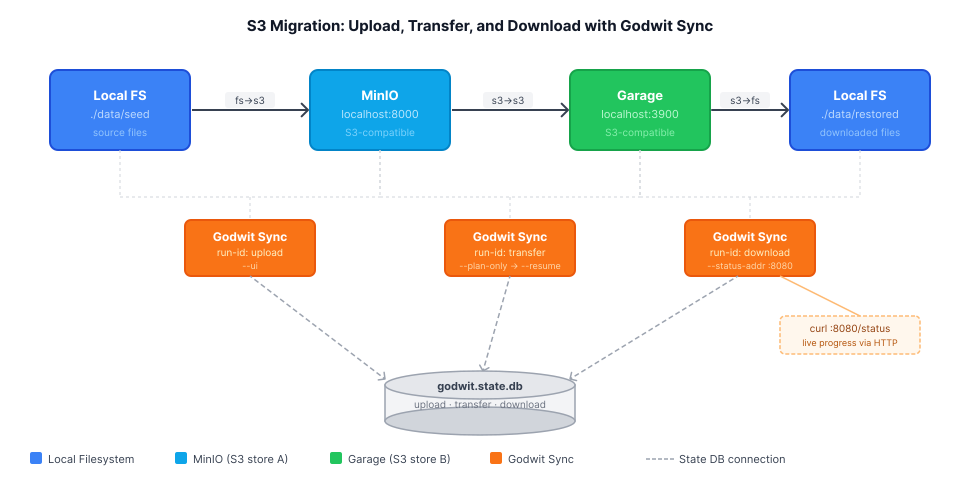
Every transfer is backed by a local state database. Each run gets a --run-id, so runs can be inspected, resumed, or verified independently.
Prerequisites
- Godwit Sync binary on
PATH
Verify Godwit Sync is available:
godwit version
If godwit is not installed yet, follow the Godwit Sync Quickstart.
The examples below use MinIO and Garage as stand-ins for any S3-compatible service. Replace the endpoint, access key, and secret key values with your own.
Tip: To avoid repeating credentials on every command, you can put them in a YAML config file and pass
--config godwit.yml. The config file accepts all the same options (source/destination endpoints, credentials, parallelism, etc.) and CLI flags override any value set in the file. See the configuration reference for the full schema.
How to Upload Files to S3 (Filesystem to S3)
To upload a local directory to an S3 bucket, point --source at a local path and --destination at an s3:// URI:
Bash/zsh:
godwit sync \
  --source ./data/seed \
  --destination s3://demo-bucket \
  --destination-endpoint localhost:8000 \
  --destination-access-key minioadmin \
  --destination-secret-key minioadmin \
  --destination-secure=false \
  --state-path ./godwit.state.db \
  --run-id upload \
  --status-addr :8888 \
  --ui
PowerShell:
godwit sync `
  --source ./data/seed `
  --destination s3://demo-bucket `
  --destination-endpoint localhost:8000 `
  --destination-access-key minioadmin `
  --destination-secret-key minioadmin `
  --destination-secure=false `
  --state-path ./godwit.state.db `
  --run-id upload `
  --status-addr :8888 `
  --ui
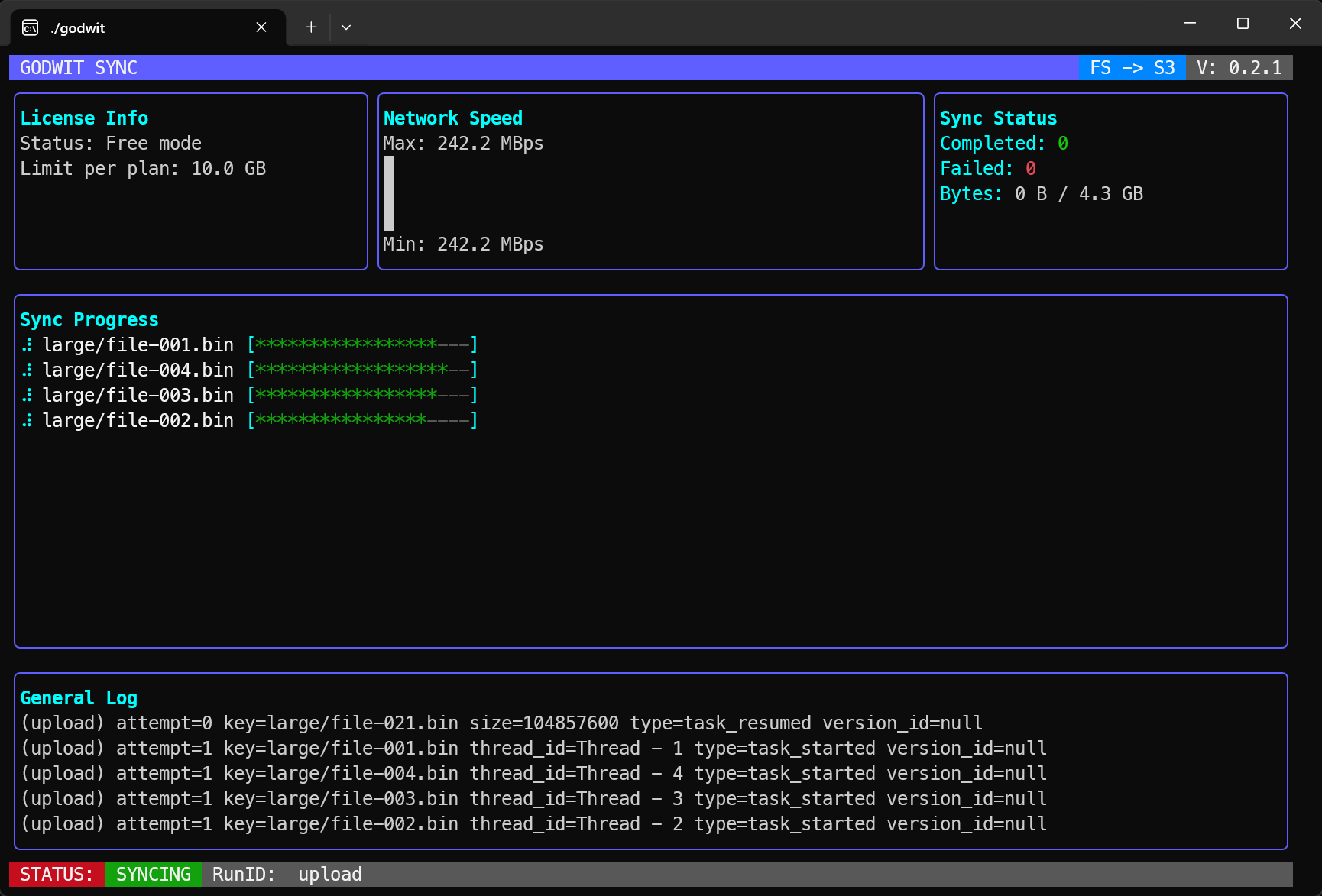
The --ui flag renders a live terminal dashboard showing objects transferred, bytes moved, and current throughput:
With --brief instead of --ui, Godwit Sync prints a text completion summary:
────────────────────────────────────────
  RUN COMPLETED
────────────────────────────────────────
Run-ID: upload
✓ Objects transferred: 142
✓ Data transferred: 38.7 MiB
✓ Total time: 4.2s
────────────────────────────────────────
Key flags:
--destination-endpoint-- the S3 API host and port. Required for any non-AWS endpoint.--destination-secure=false-- disables TLS. Required when the endpoint serves plain HTTP (e.g., local MinIO). Omit this flag when connecting to endpoints with valid TLS certificates.--state-path-- path to the state database. Godwit Sync tracks every object here.--parallel(default 4) -- number of concurrent transfer workers. Increase this for high-bandwidth links or large file counts.--plan-parallel(default 8) -- number of concurrent workers during the planning (listing) phase. When working with large buckets (hundreds of thousands of objects or more), setting this to 200 or higher can speed up plan creation significantly.
Resuming an Interrupted Upload
If the upload is interrupted, add --resume to the command and re-run it. Godwit Sync skips the planning phase entirely, reads the state database, and picks up only the objects still in pending or failed state. Objects that already succeeded are not re-read from the source.
Without --resume, re-running the same command would re-plan from scratch, though already uploaded objects are skipped during execution.
What Happens When an Object Fails
By default, each object gets a single attempt. Set --retry to enable automatic retries with exponential backoff. For example, --retry 3 --retry-backoff 2s gives each object up to 4 attempts (1 initial + 3 retries) with delays of 2s, 4s, and 8s between them:
Retrying: data/archive/2024-report.csv (attempt 2/3, write error: connection reset, worker 3)
Retrying: data/archive/2024-report.csv (attempt 3/3, write error: connection reset, worker 3)
The retry budget is shared across read and write errors -- a source read failure and a destination write failure both count against the same --retry limit.
If all retries are exhausted, the object is marked as failed in the state database and the run continues with the remaining objects:
Failed: data/archive/2024-report.csv - Error: connection reset (worker 3)
The final summary still prints, showing the failure count. Re-running with --resume will retry the failed objects.
How to Migrate Between S3 Providers (S3-to-S3 Transfer)
To migrate objects from one S3-compatible store to another without downloading to local disk, set both --source and --destination to s3:// URIs. Each side gets its own endpoint and credential flags.
The upload in the previous section may have created .md5 checksum sidecar files in the bucket. Use --skip .md5 during planning to exclude them from the transfer.
For large migrations, the plan-first workflow lets you review exactly what will be transferred before any bytes move.
Step 1: Build the Transfer Plan
Run with --plan-only to scan the source and write every object to the state database without copying anything:
Bash/zsh:
godwit sync \
  --source s3://demo-bucket \
  --source-endpoint localhost:8000 \
  --source-access-key minioadmin \
  --source-secret-key minioadmin \
  --source-secure=false \
  --destination s3://demo-bucket \
  --destination-endpoint localhost:3900 \
  --destination-access-key garageadmin \
  --destination-secret-key garageadmin00000000000000000000000 \
  --destination-secure=false \
  --state-path ./godwit.state.db \
  --run-id transfer \
  --skip .md5 \
  --skip-tags \
  --plan-only \
  --status-addr :8888 \
  --brief
PowerShell:
godwit sync `
  --source s3://demo-bucket `
  --source-endpoint localhost:8000 `
  --source-access-key minioadmin `
  --source-secret-key minioadmin `
  --source-secure=false `
  --destination s3://demo-bucket `
  --destination-endpoint localhost:3900 `
  --destination-access-key garageadmin `
  --destination-secret-key garageadmin00000000000000000000000 `
  --destination-secure=false `
  --state-path ./godwit.state.db `
  --run-id transfer `
  --skip .md5 `
  --skip-tags `
  --plan-only `
  --status-addr :8888 `
  --brief
No data has been copied. The output confirms what was planned:
────────────────────────────────────────
  PLAN READY
────────────────────────────────────────
Run-ID: transfer
Objects analyzed: 142
Objects to transfer: 142
Objects skipped: 0
Data to transfer: 38.7 MiB
────────────────────────────────────────
The state database now contains a record of every object that will be transferred, including its size and source checksum. Inspect the plan with:
Bash/zsh:
godwit plan inspect \
  --run-id transfer \
  --state-path ./godwit.state.db
PowerShell:
godwit plan inspect `
  --run-id transfer `
  --state-path ./godwit.state.db
The output shows per-run totals:
Plan Summary for Run: transfer
─────────────────────────────────────
Status:            planned
Started At:        2026-03-24 18:59:42

Objects:
  Total:           360
  Pending:         180
  Running:         0
  Finished:        0
  Skipped:         0
  Failed:          0
  Excluded:        180

Data:
  Transferred:     0 B
  Left:            4.3 GB
  Total:           4.3 GB
  Excluded:        5.6 KB

Storage classes detected:
  STANDARD:            100.0%   360 objects   4.3 GB

Version History:
  Complete History:      180 keys
  Partial History:       0 keys
  Fully Skipped:         0 keys
Step 2: Execute the S3 Migration with Resume
Once you are satisfied with the plan, execute the transfer with --resume:
Bash/zsh:
godwit sync \
  --source s3://demo-bucket \
  --source-endpoint localhost:8000 \
  --source-access-key minioadmin \
  --source-secret-key minioadmin \
  --source-secure=false \
  --destination s3://demo-bucket \
  --destination-endpoint localhost:3900 \
  --destination-access-key garageadmin \
  --destination-secret-key garageadmin00000000000000000000000 \
  --destination-secure=false \
  --state-path ./godwit.state.db \
  --run-id transfer \
  --resume \
  --skip-tags \
  --status-addr :8888 \
  --brief
PowerShell:
godwit sync `
  --source s3://demo-bucket `
  --source-endpoint localhost:8000 `
  --source-access-key minioadmin `
  --source-secret-key minioadmin `
  --source-secure=false `
  --destination s3://demo-bucket `
  --destination-endpoint localhost:3900 `
  --destination-access-key garageadmin `
  --destination-secret-key garageadmin00000000000000000000000 `
  --destination-secure=false `
  --state-path ./godwit.state.db `
  --run-id transfer `
  --resume `
  --skip-tags `
  --status-addr :8888 `
  --brief
--resume reads the existing plan from the state database and only transfers objects that are still in pending or failed state. It skips the planning phase entirely -- no source listing occurs. If the run is interrupted at any point, re-running with --resume picks up where it left off.
Skipping the Plan Step
If you do not need to review the plan beforehand, omit both --plan-only and --resume. Godwit Sync will plan and execute in a single pass, while still tracking state for resumability.
How to Download an S3 Bucket to Local Disk (S3 to Filesystem)
To download all objects from an S3 bucket to a local directory, set --source to an s3:// URI and --destination to a local path. No destination endpoint flags are needed.
Bash/zsh:
godwit sync \
  --source s3://demo-bucket \
  --source-endpoint localhost:3900 \
  --source-access-key garageadmin \
  --source-secret-key garageadmin00000000000000000000000 \
  --source-secure=false \
  --destination ./data/restored \
  --state-path ./godwit.state.db \
  --run-id download \
  --skip .md5 \
  --skip-tags \
  --status-addr :8888 \
  --brief
PowerShell:
godwit sync `
  --source s3://demo-bucket `
  --source-endpoint localhost:3900 `
  --source-access-key garageadmin `
  --source-secret-key garageadmin00000000000000000000000 `
  --source-secure=false `
  --destination ./data/restored `
  --state-path ./godwit.state.db `
  --run-id download `
  --skip .md5 `
  --skip-tags `
  --status-addr :8888 `
  --brief
Live Progress Monitoring
The --status-addr :8888 flag starts a lightweight HTTP server that exposes real-time transfer progress. Poll it from a second terminal or a CI script:
curl http://localhost:8888/status
The endpoint returns JSON with real-time progress:
{
  "run_id": "transfer",
  "status": "running",
  "source": "s3://demo-bucket",
  "destination": "s3://demo-bucket",
  "started_at": "2026-03-24T18:59:42.118491701Z",
  "finished_at": "2026-03-24T18:59:41.973119325Z",
  "eta_seconds": 55.559615854,
  "objects": {
    "total": 360,
    "done": 8,
    "failed": 0,
    "skipped": 0,
    "excluded": 180,
    "pending": 168,
    "running": 4
  },
  "bytes": {
    "total": 4620293760,
    "done": 838860800,
    "failed": 0,
    "skipped": 0,
    "excluded": 5760,
    "pending": 3361996800,
    "running": 419430400
  },
  "version_history": {
    "complete": 8,
    "partial": 0,
    "fully_skipped": 0
  },
  "storage_classes": [
    {
      "name": "STANDARD",
      "count": 360,
      "bytes": 4620293760,
      "percent": 100
    }
  ],
  "read_retries": 0,
  "write_retries": 0
}
This is useful in CI pipelines where you need to stream progress to a monitoring system without parsing terminal output.
How to Verify S3 Migration Checksums
After a transfer completes, godwit plan verify re-reads each object at the destination and compares it against the checksum stored in its .md5 sidecar. This is an independent check -- it does not trust the transfer itself.
Bash/zsh:
godwit plan verify \
  --run-id transfer \
  --destination s3://demo-bucket \
  --destination-endpoint localhost:3900 \
  --destination-access-key garageadmin \
  --destination-secret-key garageadmin00000000000000000000000 \
  --destination-secure=false \
  --state-path ./godwit.state.db \
  --brief
PowerShell:
godwit plan verify `
  --run-id transfer `
  --destination s3://demo-bucket `
  --destination-endpoint localhost:3900 `
  --destination-access-key garageadmin `
  --destination-secret-key garageadmin00000000000000000000000 `
  --destination-secure=false `
  --state-path ./godwit.state.db `
  --brief
A clean run prints a verified count with zero failures:
Verified: 180 objects, 0 mismatches, 0 errors
Any mismatch is reported per-object so you know exactly what to retransfer:
MISMATCH: images/hero.png (expected: a3f2b8c1, got: 7e91d4f0, worker 2)
Inspecting Transfer Runs
Godwit Sync tracks every run in the state database. Use godwit plan inspect to see per-run totals (objects planned, succeeded, skipped, failed, bytes transferred) and godwit plan list to see the list of all runs:
Bash/zsh:
godwit plan inspect \
  --run-id transfer \
  --state-path ./godwit.state.db

godwit plan list \
  --state-path ./godwit.state.db
PowerShell:
godwit plan inspect `
  --run-id transfer `
  --state-path ./godwit.state.db

godwit plan list `
  --state-path ./godwit.state.db
Sample plan list output:
RUN-ID    STATUS     STARTED              OBJECTS  BYTES   DURATION  FAILURES
──────    ──────     ────                 ───────  ─────   ────────  ────────
download  completed  2026-03-24 19:00:35  360      4.3 GB  27s       0
transfer  completed  2026-03-24 18:59:42  360      4.3 GB  54s       0
upload    completed  2026-03-24 18:58:42  180      4.3 GB  59s       0
Multiple runs can share the same state database. Each --run-id is tracked independently, so you can run uploads, transfers, and downloads side by side and inspect each one separately.
Try It Hands-On
The companion lab provides a complete Docker environment with MinIO and Garage, pre-generated seed data, and a single script that runs all three use cases in sequence with verification:
bash scripts/migrate.sh
It is a convenient way to see Godwit Sync in action against real S3-compatible stores.
Next Steps
This guide covered the three core migration directions and the key Godwit Sync features: plan-first execution, resumable transfers, checksum verification, and live progress monitoring. From here you can explore the Godwit Sync documentation for advanced options like multipart thresholds, version history migration, and object lock replication.